
Importing Project Questions from Excel
The Excel Question Importer lets you quickly add questions from spreadsheet files to your project.
How to Import Questions
1. Upload File
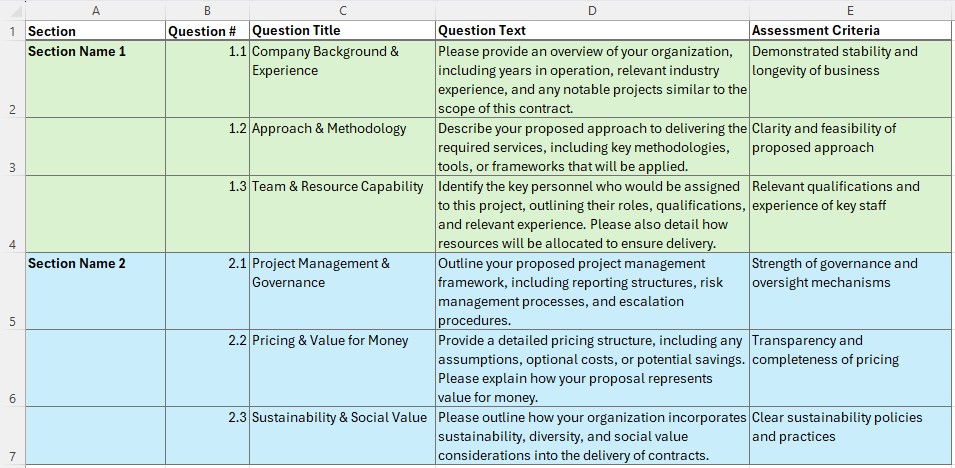
- Go to your project’s Questions tab
- Click Import from Excel
- Choose your .xlsx or .xls file
2. Configure Settings

- Select worksheet (if multiple sheets exist)
- Set header row (usually row 1)
- Map columns to question fields:
- Question Text (required) – the main question content
- Section (recommended) – for organising questions
- Question Number – preserves original numbering
- Question Title – brief question summary
- Assessment Criteria – evaluation guidelines
3. Preview & Edit
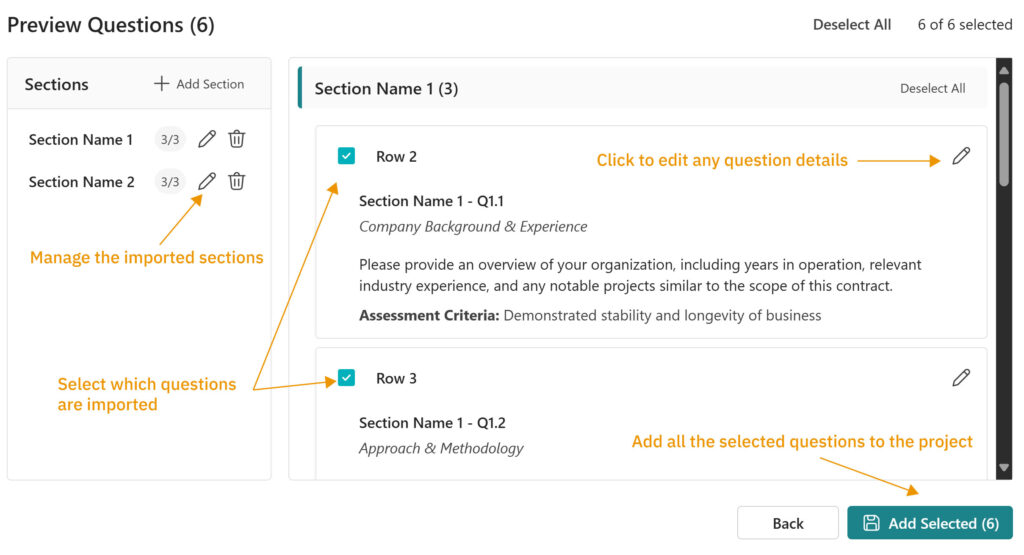
- Review all questions before importing
- Edit question text, titles, or section assignments
- Select which questions to import (use checkboxes)
- Create or rename sections as needed
4. Import
- Click Add Selected Questions
- Review the results summary
- Close the importer when finished
Issues?
- No questions showing? Check your header row setting and column mapping
- Mixed up information? Simplify complex Excel files by removing unnecessary formatting – Ensure your data is in clear columns
- File won’t upload? Ensure it’s a proper .xlsx or .xls Excel file
- Sections not working? Verify your section column mapping is correct
The importer handles most standard Excel question formats automatically. Use the preview step to verify everything looks right before importing.