
Collection Tags
What does it do?
Tags help organise and categorise your collections for easier discovery and management. When using the tools you can also select collections to use based on Tags.
Tags can be organised into Categories and applied to collections to help find relevant collections when you are using the AI Tools.
When would I use it?
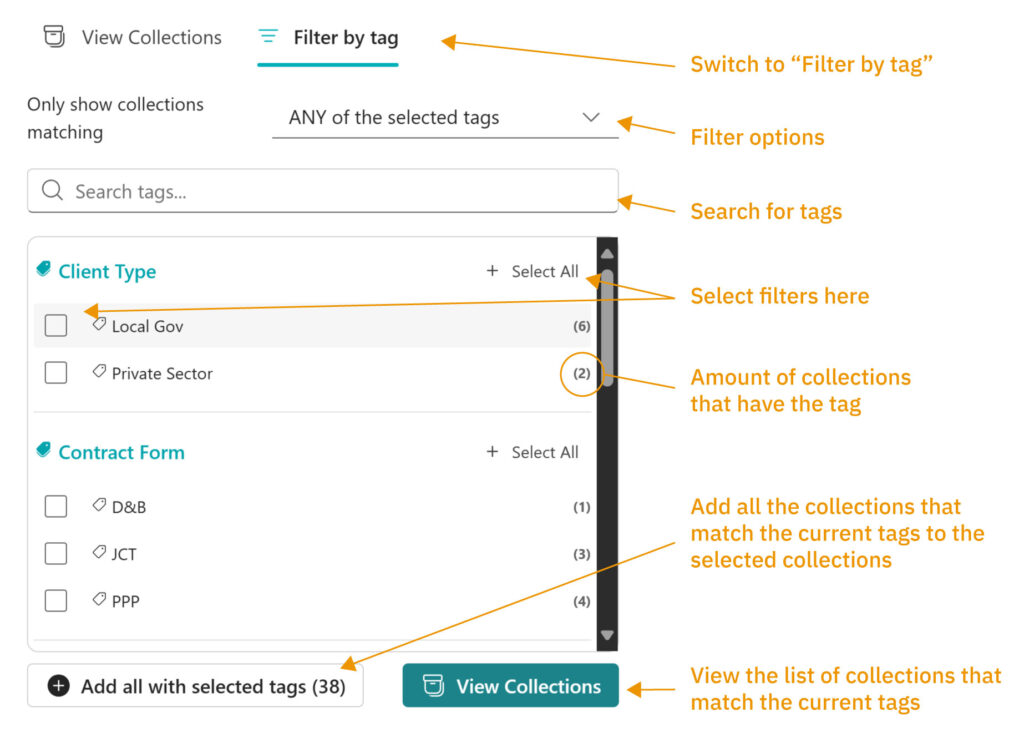
When you are selecting which document collections to use for a AI Tool, you can filter the collections by tags and use the tags to directly add collections to your selected set.
How to use it
- Select Tags: Browse through categorised tags and check the boxes next to tags you want to filter by. Each tag shows a count of how many collections contain that tag.
- Search Tags: When there are many tags available, use the search box to quickly find specific tags by typing part of their name.
- Category Management: Tags are organised by categories, and you can use the “Select All” button to quickly select all tags within a specific category.
Filter Matching Options
Once you’ve selected tags, you can choose how collections should match your selection:
- ANY of the selected tags (default): Shows collections that have at least one of your selected tags. This is an “OR” operation that casts a wider net.
- ALL of the selected tags: Shows collections that contain every single selected tag. This is an “AND” operation that creates more precise, narrowed results.
Creating and Editing Tags
Users with a ‘Content Manager’ role or higher will be able to access the Collection Manager from the ‘Managers’ menu at the top of the page. Here you can edit the tags – Find out more about the Collection Manager here.